Mac menu bar app
Quotalight
Your AI coding limits, always in sight.
Claude Code, Codex and Antigravity limits in the Mac menu bar — with a colour that shows your pace and a warning before a limit runs out.
What it shows
Every limit, one glance.
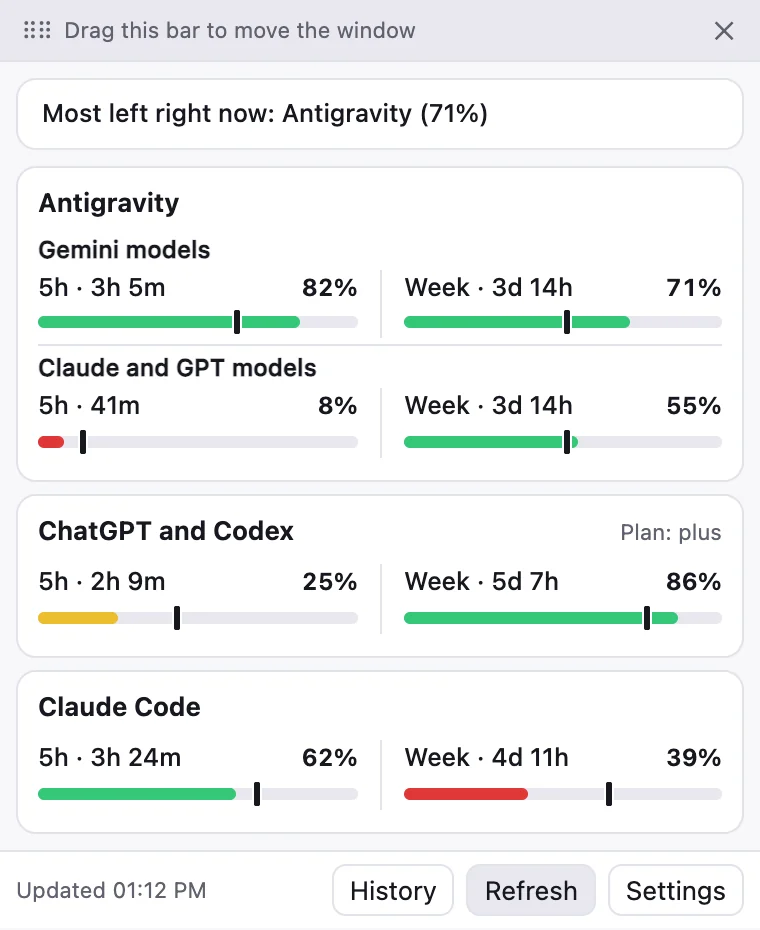
Quotalight reads the limits from the AI coding tools already on your Mac. Each model you choose gets a small gauge in the menu bar; one click opens the panel with the 5-hour and weekly bars.
Claude Code
5-hour and weekly limits. Read through the Claude Code CLI on your Mac.
Codex and ChatGPT
5-hour and weekly limits of your ChatGPT plan. Read through the Codex CLI or the Codex app.
Antigravity
The Gemini, Claude and GPT-OSS models inside Antigravity. Read from Google’s Antigravity IDE while it is running.

How the colours work
Colour shows your pace.
An even week gives each day one seventh of your weekly limit. The colour compares what you have used with that even pace — so you can see trouble coming while there is still plenty left.
Green
You are under your even weekly pace.
Yellow
You are on pace.
Red
You are ahead of pace and may run out before the week resets.
5-hour bars work on what is left: they turn yellow at 30 % left and red at 10 % left. The dark mark on each bar shows how much of the window has passed.
Features
Small, quiet, on time.
A gauge in the menu bar
The model you choose gets a small gauge in the menu bar, coloured by your pace.
5-hour and weekly bars
Click the gauge to open the panel: every limit as a bar, with a mark for how far the window has run.
Desktop notifications
Choose the levels — 75, 90 or 95 % used — and get a macOS notification when a limit reaches them.
“Use it now” line
The top line of the panel names the tool with the most left right now.
Up to 3 models in the menu bar Pro
Watch three limits side by side instead of one.
Floating meter Pro
A small dark pill with your gauges that you can drag anywhere on the screen.
Run-out forecast Pro
At your current pace, the panel says when a limit runs out: “runs out at …”.
Phone alerts Pro
Alerts on your phone through the free ntfy app. QR codes in Settings make the setup quick.
History Pro
See how each limit went over the last 7, 30 or 90 days.
- Signed with a Developer ID and notarized by Apple
- Checks for updates on its own
- Opens at login
- In English, Estonian, German, Japanese, Chinese (Simplified), Korean and Spanish
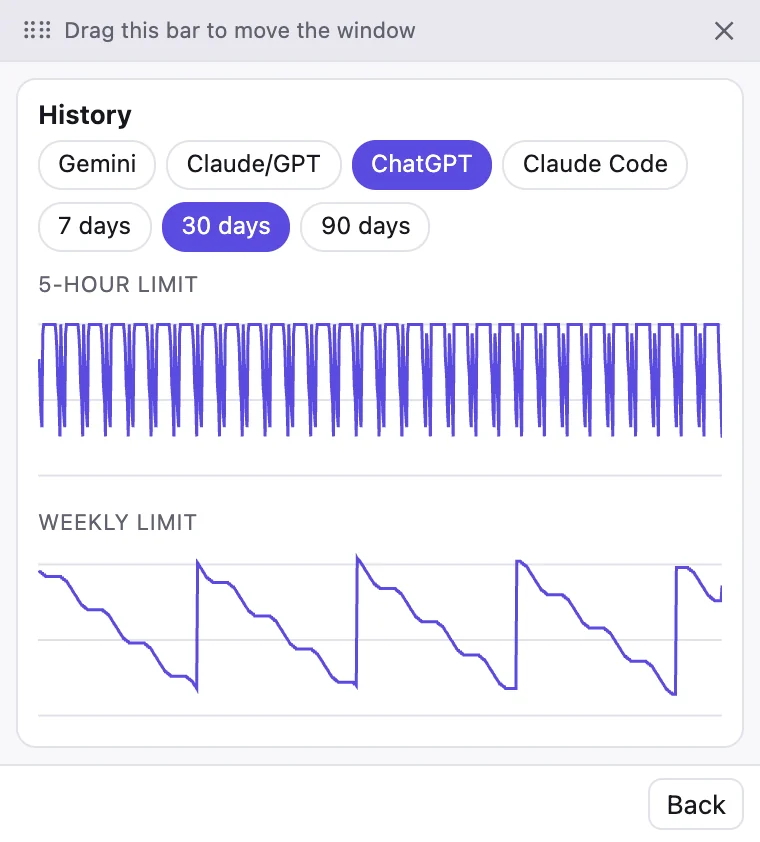
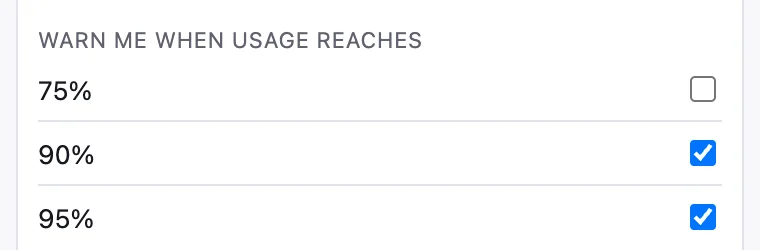
Screenshots are from the app itself, with sample data.
Free and Pro
Free forever. Pro once.
| Feature | Free | Pro |
|---|---|---|
| Models in the menu bar | 1 | Up to 3 |
| Panel with 5-hour and weekly bars | Included | Included |
| Desktop notifications (75 / 90 / 95 %) | Included | Included |
| Floating meter | Not included | Included |
| Run-out forecast | Not included | Included |
| Phone alerts (ntfy) | Not included | Included |
| History (7 / 30 / 90 days) | Not included | Included |
| Price | Free, forever | €14.99 once |
Install
- Download Quotalight.dmg.
- Open the DMG and drag Quotalight onto the Applications folder.
- Open Quotalight from Applications. If macOS asks whether to open an app downloaded from the internet, choose Open.
- A gauge appears in the menu bar at the top of the screen. Click it to open the panel.
First run and notifications
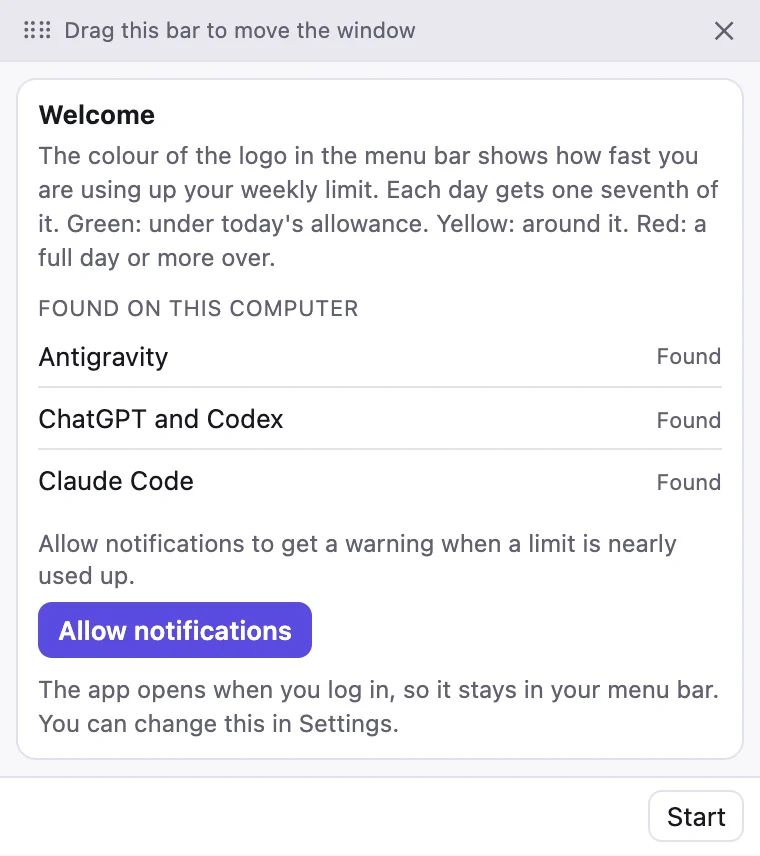
- The welcome screen lists the tools Quotalight found on this Mac.
- Press Allow notifications.
- If macOS asks in the top right corner of the screen, move the pointer over the message, open Options and choose Allow.
- No notification appeared? Open Settings → Notification settings and allow Quotalight.
- Press Start. Quotalight opens at login, so it stays in your menu bar. You can turn this off in Settings (Open at login).
Choose up to 3 models
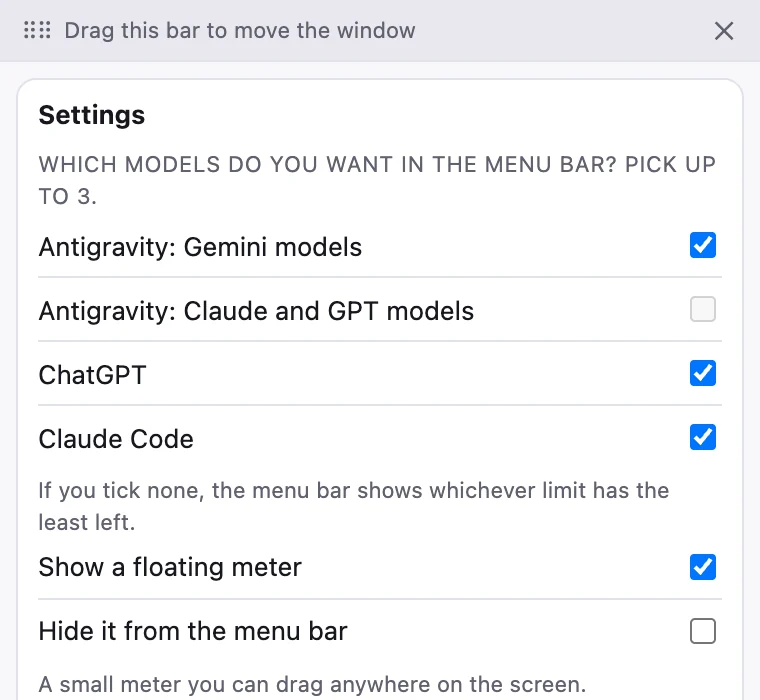
- Open the panel and press Settings.
- Under Which models do you want in the menu bar?, tick the ones you want. Free shows one; Pro shows up to three, each with its own gauge.
- If you tick none, the menu bar shows whichever limit has the least left.
- Under Limits to show and warn about, choose which tools appear in the panel and in alerts.
The floating meter Pro
- In Settings, tick Show a floating meter.
- A dark pill with your gauges appears at the bottom centre of the screen.
- Drag it by any part except the ⌃ button to put it where you like. The ⌃ button opens the panel.
- Want only the meter? Tick Hide it from the menu bar.
Phone alerts with ntfy Pro
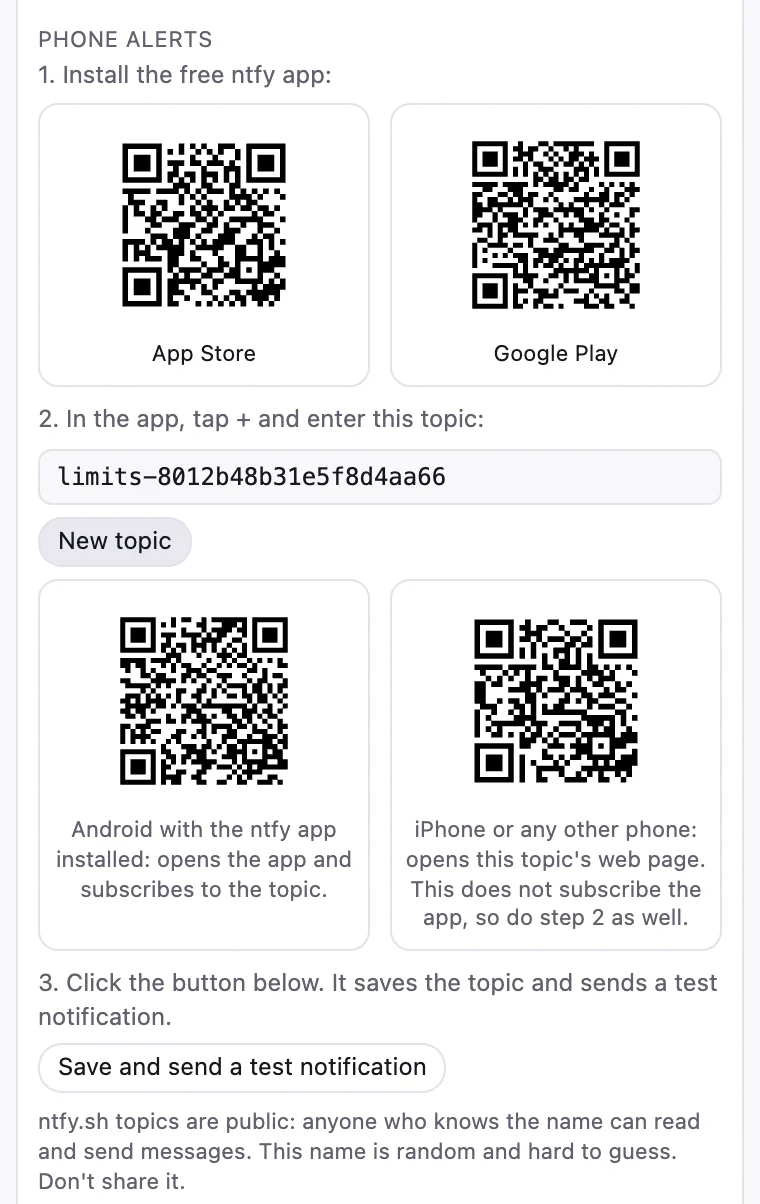
- Install the free ntfy app from the App Store or Google Play. In Settings → Phone alerts, Quotalight shows QR codes for both stores.
- In the ntfy app, tap + and type the topic Quotalight shows — or scan its QR code. On Android this opens the app and subscribes; on an iPhone it opens the topic’s web page, so type the topic in the app as well.
- Back in Quotalight, press Save and send a test notification. Your phone should show it.
ntfy.sh topics are public: anyone who knows the name can read and send messages. Quotalight makes a random name that is hard to guess. Don’t share it; New topic makes a fresh one.
Activate a license key
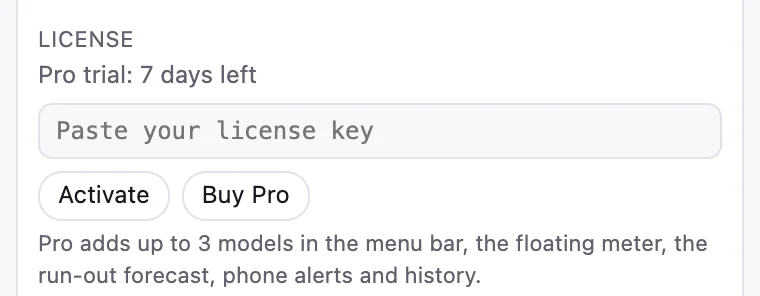
- Buy Pro. You get a license key after the purchase.
- Open the panel and go to Settings → License.
- Paste the key into the field and press Activate.
Quit and bring it back
- To quit, open Settings, press Quit and then Yes, quit. The gauge leaves the menu bar.
- To bring it back, open Launchpad or Applications → Quotalight.
- Or press ⌘ Space for Spotlight, type Quotalight and press Return.
Uninstall
- Quit Quotalight (see above).
- Drag Quotalight from Applications to the Trash.
- To remove its settings and history too, delete these folders (in Finder: Go → Go to Folder…):
~/Library/Application Support/com.nordicmoonlight.limiidiriba~/Library/Logs/Quotalight
What each tool needs
- Claude Code
- The Claude Code CLI installed on this Mac and logged in.
- Codex and ChatGPT
- The Codex CLI or the Codex app, logged in.
- Antigravity
- Antigravity open. Quotalight talks to Antigravity’s local language server on your Mac, so its limits show while Antigravity runs.
- Your Mac
- macOS 13 Ventura or later.
FAQ
Short answers.
Is Pro a subscription?
No. Pro is a one-time purchase: €14.99, paid once. Payment is handled by Polar, our merchant of record.
What happens when the 7-day trial ends?
Quotalight keeps working on the free tier: one model in the menu bar, the panel and desktop notifications. The trial needs no email and no card.
How often does it update?
Every few minutes. The Refresh button in the panel checks again straight away.
Do I need an account?
No. Quotalight has no account. It reads the limits from the tools already signed in on your Mac.
Why is Antigravity missing from the panel?
Antigravity limits show only while Antigravity is open. If it closes, the panel says how old the last figures are.
Which Macs does it run on?
macOS 13 Ventura or later. The app is signed with a Developer ID, notarized by Apple, and tells you when an update is ready.
Is Quotalight made by Anthropic, OpenAI or Google?
No. Quotalight is made by Nordic Moonlight, a small software studio in Estonia, and is not affiliated with them.
Privacy
No account. No analytics. Your limits stay on your Mac.
Quotalight reads your limits from the tools already on your computer, and those tools talk to their own servers. For Antigravity, it talks to Antigravity’s local language server on your Mac.
Quotalight itself goes online only to check for updates, to check your license and to send the phone alerts you set up.
Made by Nordic Moonlight (Taisuhing Nordic Moonlight, the name on the Apple Developer ID), Estonia. Questions or problems: support@nordicmoonlight.com.
Quotalight is not affiliated with Anthropic, OpenAI or Google. Claude, Codex, ChatGPT, Gemini and Antigravity are trademarks of their owners; the names are used only to say which tools Quotalight works with.